Create a Token

Define a new token using a template or custom configuration.

Token creation defines your token's metadata, extensions, and operational rules. The token is saved in SDP but not yet deployed onchain — see Deploy a Token for the next step.
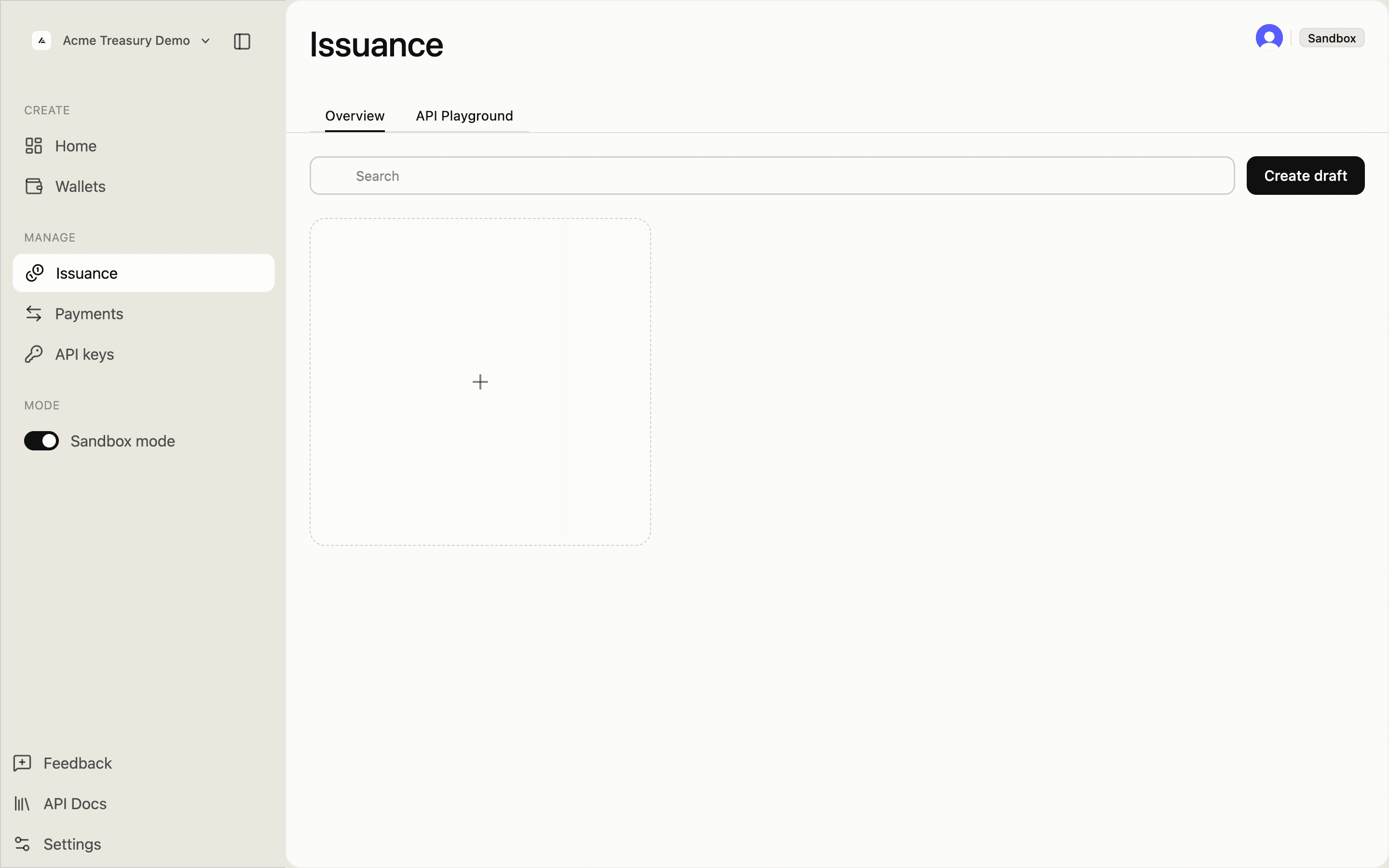
Empty Issuance page with a create card

Templates

TemplateDecimalsKey extensionsUse case
stablecoin6Permanent delegate, pausableUSD-backed tokens
tokenized-security8Permanent delegate, pausable, scaled UI amount, allowlist requiredRegulated assets
custom9None — you chooseFull control

How it works

Choose a template

Select the template that matches your asset model. Templates pre-fill extensions and constraints you can review before confirming.

Navigate to Issuance in the sidebar and click Create token in the top right corner.

The first screen shows three template cards:

  • Stablecoin — USD-backed tokens with compliance controls
  • Tokenized Security — regulated assets with allowlist requirement
  • Custom — fully configurable Token-2022 setup

Select a template and click Continue.
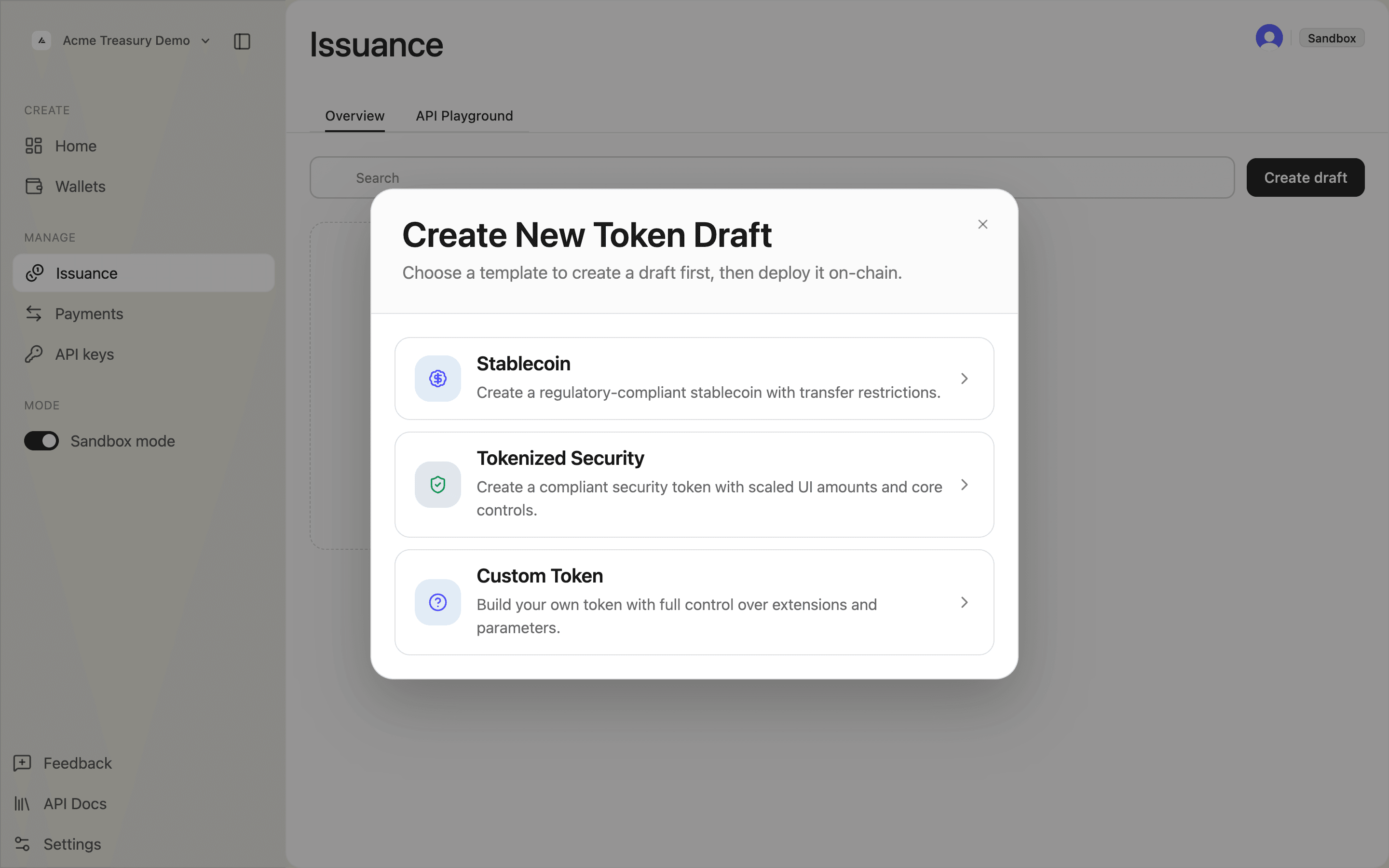
Template selection modal showing Stablecoin, Tokenized Security, and Custom cards

List available templates to see what fields each one pre-configures:

curl https://api.solana.com/v1/issuance/templates \
  -H "Authorization: Bearer sk_test_..."
const res = await fetch("https://api.solana.com/v1/issuance/templates", {
  headers: { Authorization: "Bearer sk_test_..." },
});
const { data } = await res.json();
// data[].id — use as the "template" value when creating

Configure token identity

Set the core metadata: name, symbol, decimals, and a URI pointing to your token metadata JSON.

In step 2 of 3, fill in the identity fields:

  • Metadata URI — HTTPS URL for the token metadata JSON
  • Token name — e.g., "Acme Dollar"
  • Symbol — 1–10 uppercase alphanumeric characters, e.g., ACME
  • Decimals — options depend on the selected template

Click Continue when ready.
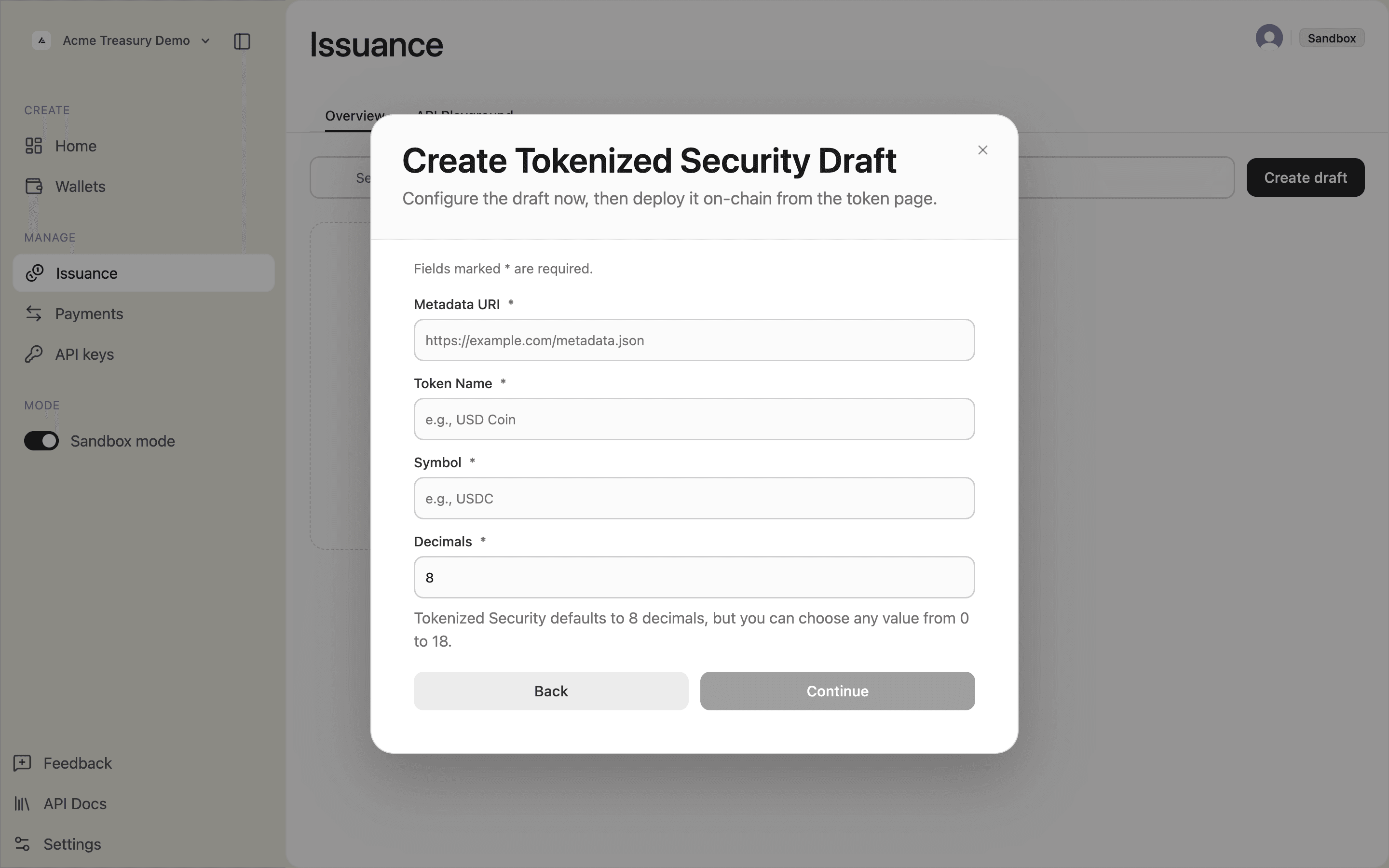
Identity configuration form with Metadata URI, Token Name, Symbol, and Decimals fields

Pass identity fields in the POST /v1/issuance/tokens body:

curl -X POST https://api.solana.com/v1/issuance/tokens \
  -H "Authorization: Bearer sk_test_..." \
  -H "Content-Type: application/json" \
  -d '{
    "name": "Acme Dollar",
    "symbol": "ACME",
    "decimals": 6,
    "description": "USD-backed stablecoin",
    "template": "stablecoin"
  }'

Set operational settings

Choose the wallet that will sign token operations, and configure allowlist and supply controls.

In step 3 of 3, configure:

  • Main signer — the SDP-controlled wallet for deploy and token actions
  • Allowlist — toggle on or off; required and locked for tokenized-security

Click Create token to save the draft.
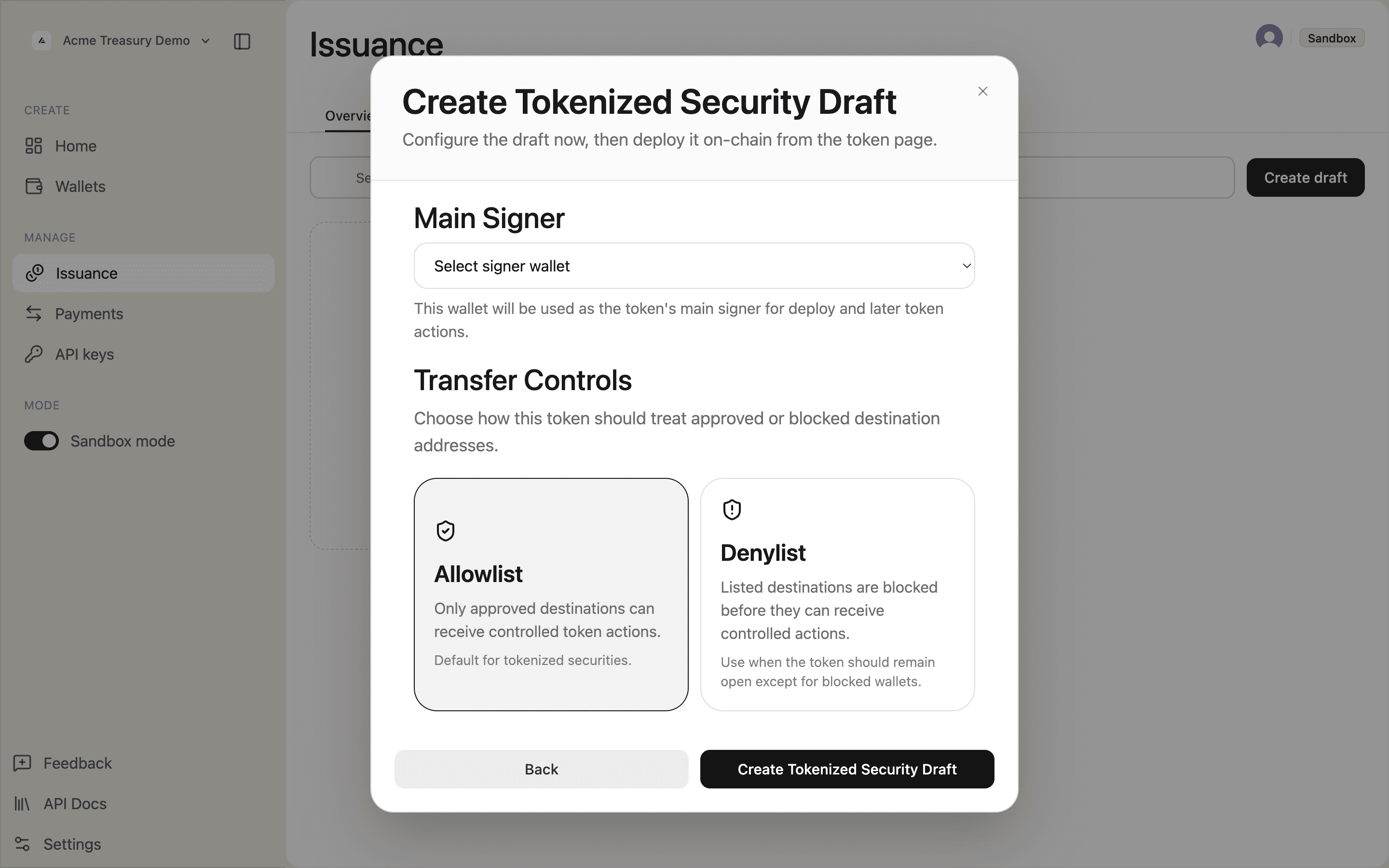
Operational settings form showing Main Signer and Transfer Controls with Allowlist and Denylist toggles

Add operational fields to the same body:

const res = await fetch("https://api.solana.com/v1/issuance/tokens", {
  method: "POST",
  headers: {
    Authorization: "Bearer sk_test_...",
    "Content-Type": "application/json",
  },
  body: JSON.stringify({
    name: "Acme Dollar",
    symbol: "ACME",
    decimals: 6,
    description: "USD-backed stablecoin",
    template: "stablecoin",
    requiresAllowlist: false,
    isMintable: true,
    isFreezable: true,
  }),
});

For a custom token, omit template or set it to "custom" and pass overrides.extensions:

body: JSON.stringify({
  name: "Game Coin",
  symbol: "GAME",
  decimals: 0,
  template: "custom",
  overrides: {
    extensions: {
      pausable: {},
      transferFee: { basisPoints: 50, maxFee: "1000" },
    },
  },
  isMintable: true,
  isFreezable: false,
}),

Confirm creation

The token is saved in SDP with status pending. Nothing has been written to Solana yet.

A success toast confirms creation. The token appears in the Issuance list with a Draft badge.

Issuance list showing the newly created token with a Draft badge

Open the token to see its detail page. The status shows Not deployed and a Deploy button is available to move to the next step.
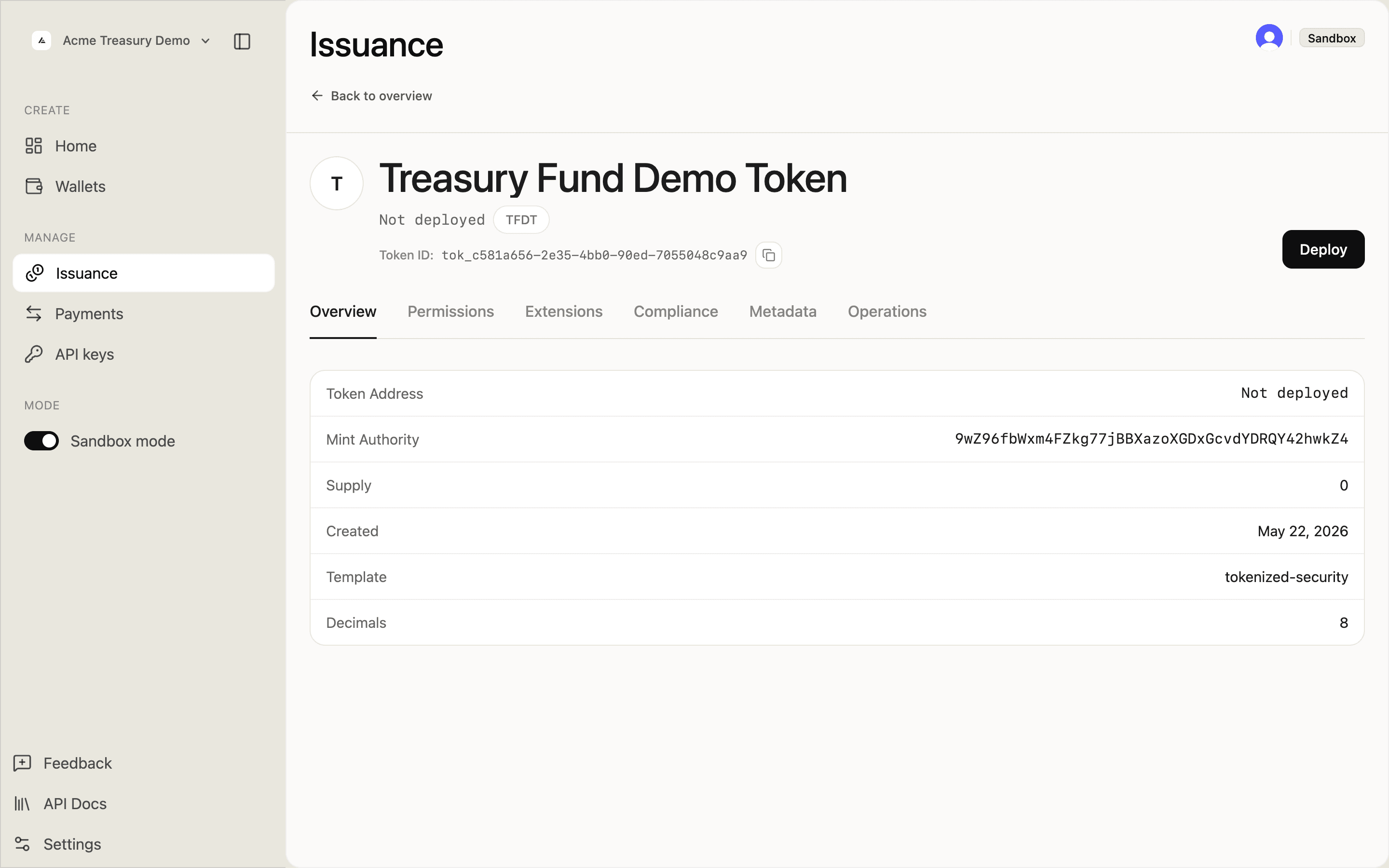
Token detail page showing Not deployed status and Deploy button

A successful response returns the new token object:

const { data } = await res.json();
// data.token.id     — save this; used in all subsequent calls
// data.token.status — "pending"

The token is not yet onchain. Pass data.token.id to Deploy a Token.

Is this page helpful?