Manage API Keys
Create, rotate, and revoke API keys with explicit grants by module, a signing wallet scope, and zero-downtime rotation.
Create, rotate, and revoke the API keys that authenticate SDP API requests. Each key belongs to a project, inherits its environment, and holds an explicit list of grants plus optional controls — see Authentication for how those layers are enforced.
Keys are credentials, not administrators: they are created, changed, rotated, and revoked only by a signed-in member of your organization in the dashboard. An API key cannot manage keys, the organization, its members, or project members, whatever it is granted; it is refused with 403 FORBIDDEN and error.details.reason set to human_session_required.
The full secret is returned exactly once — at creation and at rotation. SDP stores only a salted hash and a display prefix; a lost key cannot be recovered, only rotated or replaced. Every key tracks lastUsedAt so you can identify stale credentials before revoking them.
Key format
| Environment | Prefix | Solana network |
|---|---|---|
| Sandbox | sk_test_ | devnet |
| Production | sk_live_ | mainnet-beta |
Grants by module
Every API route performs exactly one action, named module.verb, and a key may call a route only when it holds that action. A key holds an explicit list of grants: there is no role and no wildcard.
| Verb | What it allows |
|---|---|
read | View the module's records |
manage | Create and edit records reversibly: drafts, pausing, cancelling |
execute | Anything irreversible or that leaves SDP: on-chain transactions, provider calls, moving money, and changing where money goes, such as a payout destination or a recurring amount |
enforce | Token enforcement: freeze, pause, seize, force-burn, allowlist |
authority | Transferring or revoking a token's authorities |
manage and execute each include the same module's read. Nothing else implies another action: execute does not include manage, and a grant on one module gives nothing on another. These are the actions a key can be granted on this deployment:
| Module | Actions | Covers |
|---|---|---|
transfers | transfers.read, transfers.execute | Single transfers from a custody wallet |
transfer_batches | transfer_batches.read, transfer_batches.execute | Batches of transfers, and their estimates |
payment_requests | payment_requests.read, payment_requests.manage | Payment requests and their payment links |
counterparties | counterparties.read, counterparties.manage, counterparties.execute | Counterparties, their accounts, and provider requirements |
transactions | transactions.read | The unified transaction list; each row also needs the read of its own module |
recurring | recurring.read, recurring.manage, recurring.execute | Recurring payments, subscription plans and subscriptions |
wallets | wallets.read, wallets.manage, wallets.execute | Custody wallets and their balances |
projects | projects.read | Projects and provider availability |
Some actions are never granted to a key, because keys are credentials, not administrators: key, member, organization and project administration, and every provider, credential or connection setup (configure). A create or update naming one is refused with 400. So is a grant on a module this deployment does not run; a key that already holds one keeps it when an update sends it back.
A request without the route's action is refused with 403 INSUFFICIENT_PERMISSIONS, and error.details.action names the missing action. Nothing runs or is recorded on refusal. Grants are read on every request, so a change applies to the key's next request.
When you create a key you can grant only actions you hold yourself. Everything in the dashboard writes out every action available when the key is created; an action added to SDP later is not granted to existing keys.
Wallet access
A key's wallet scope decides which custody wallets SDP may sign with on its behalf:
walletScope | Signs with |
|---|---|
all | Every custody wallet in the key's project |
selected | Only the wallets listed in walletIds. With none listed, the key signs with no custody wallet; SDP's fee sponsor is outside wallet scope |
walletIds are custody wallet ids, the id (cwlt_…) that GET /v1/wallets returns, not a provider's wallet id. A key keeps the exact wallets you listed: a wallet created later, even one reusing a provider id, is never added.
SDP checks the scope each time it signs, together with the key's grants and whether it is still active, so a narrowed scope or a revoked key stops the next signature, including one later in the same request. A signature outside the scope is refused with 403 FORBIDDEN and error.details.reason set to wallet_out_of_scope; nothing is signed or sent.
The scope narrows what a key may sign with, not what it may read. A selected key's wallet list (GET /v1/wallets) and wallet detail reads show only its wallets; every other read, such as transfers, batches and recurring payments, covers the whole project. Give a separate project to an integration that must not see another's records.
The dashboard starts a key that holds any execute action on Selected wallets, so it can sign with nothing you did not give it; choose All wallets to widen it.
Recurring payments outlive the key
A recurring payment is collected on schedule as its own mandate, not as the key or member that activated it. SDP still checks that the payment is active, that it pays from its own source wallet, and that the organization may move money. Revoking or narrowing the key that activated it does not stop it, so rotating a key never interrupts a customer's schedule.
Create a key
-
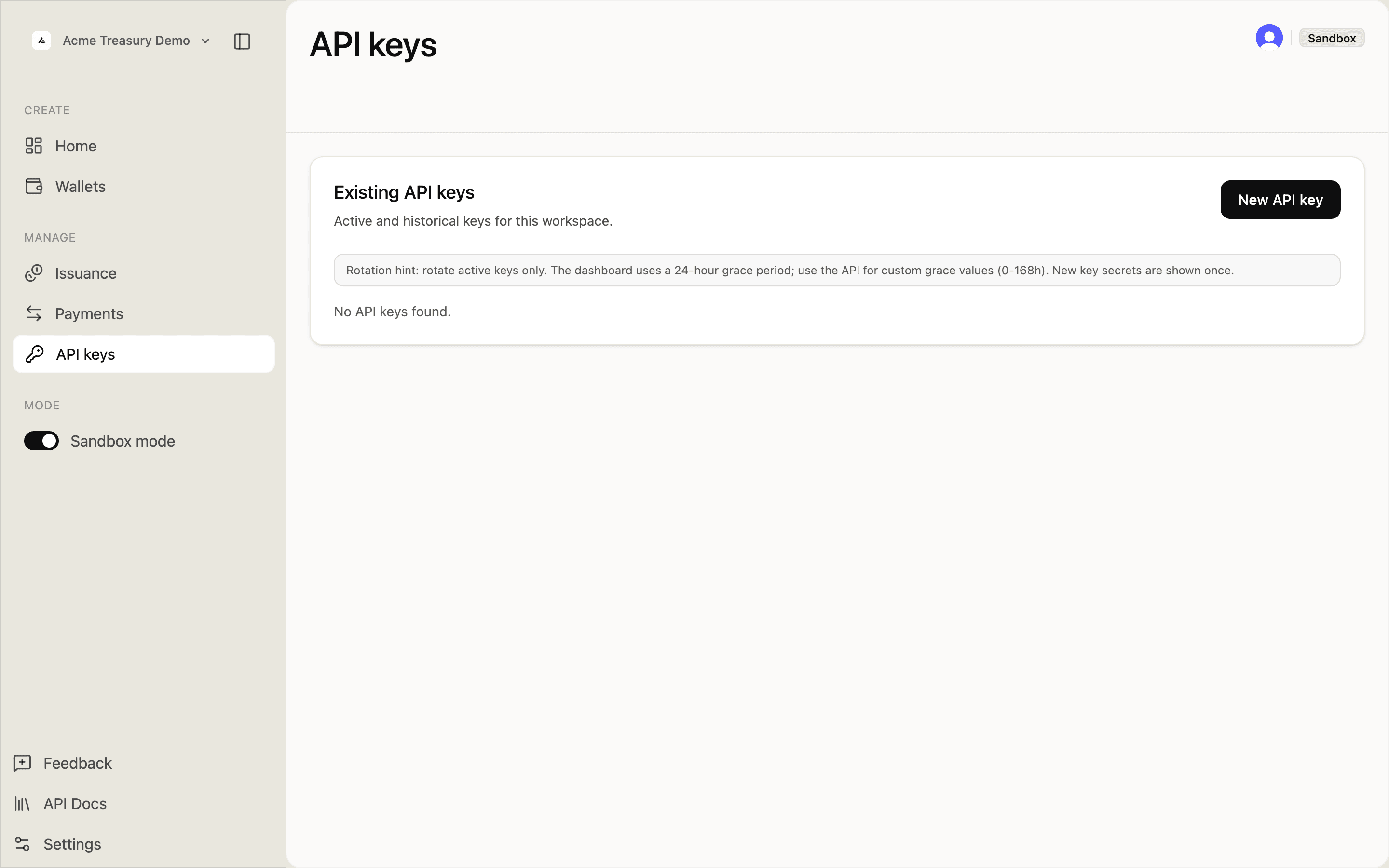
Navigate to API keys in the sidebar. You start with an empty list.
-
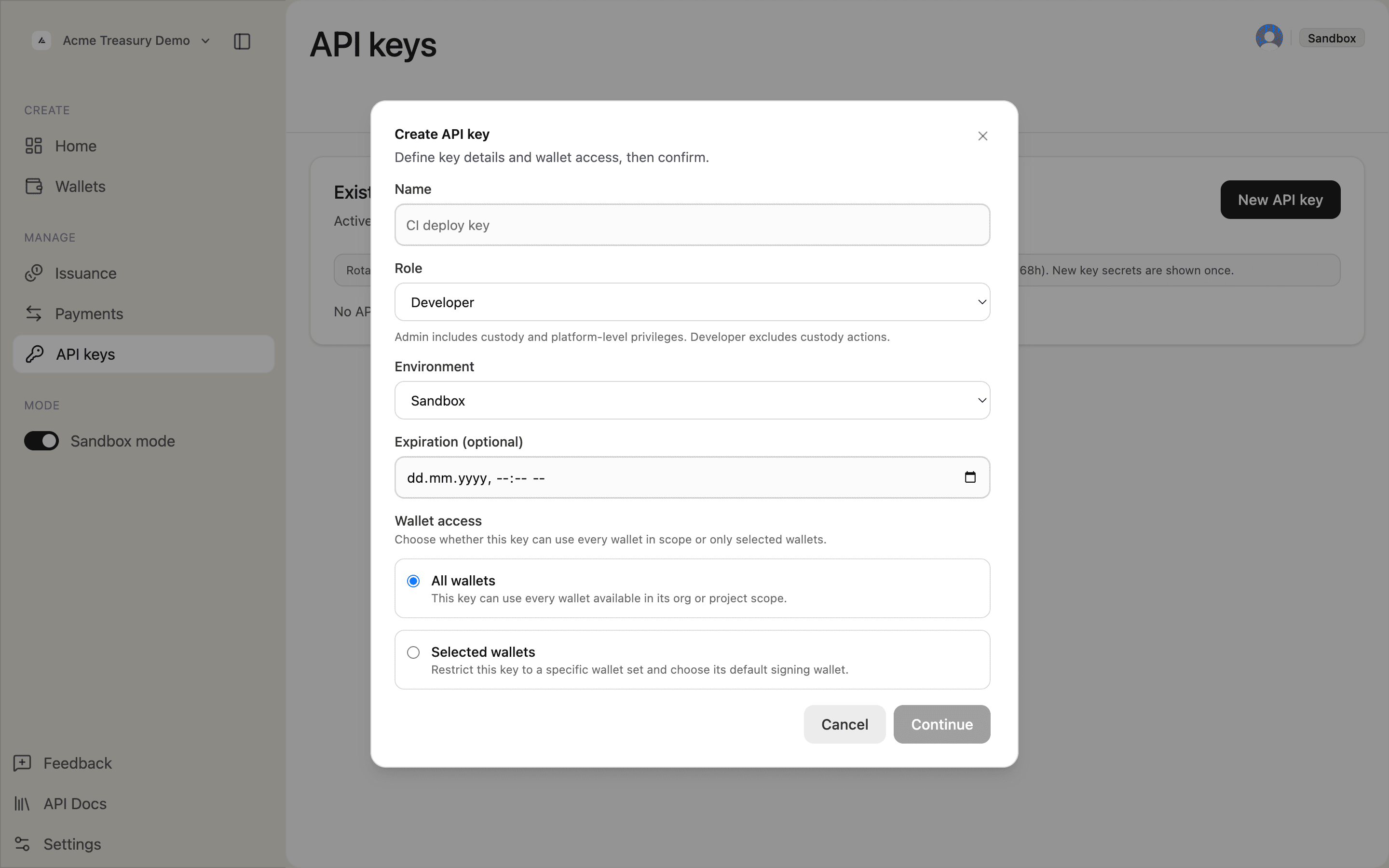
Click New API key in the top right, then fill in the key details:
- Name — a descriptive label (e.g., "CI deploy key")
- Permissions — a checkbox per verb for each module (Read, Manage, Execute); ticking Manage or Execute includes Read. Everything ticks every offered action
- Wallet access — All wallets or Selected wallets
- Expiration (optional) — date/time picker
- Allowed IP addresses (optional) — one IPv4 or IPv6 address or CIDR range per line; empty allows any address. Edit the key to change or clear it
-
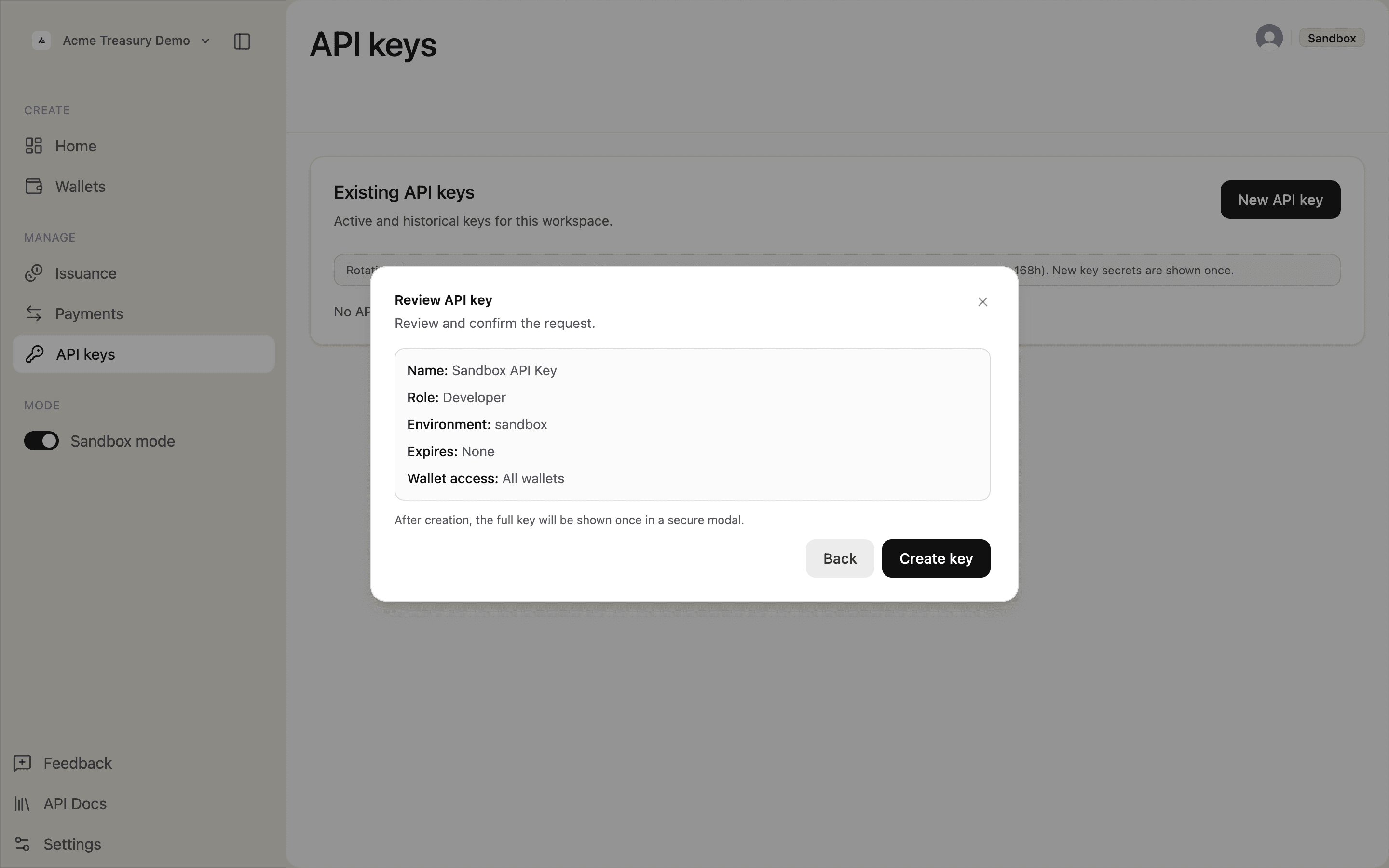
Click Continue, review the summary, and click Create key.
-
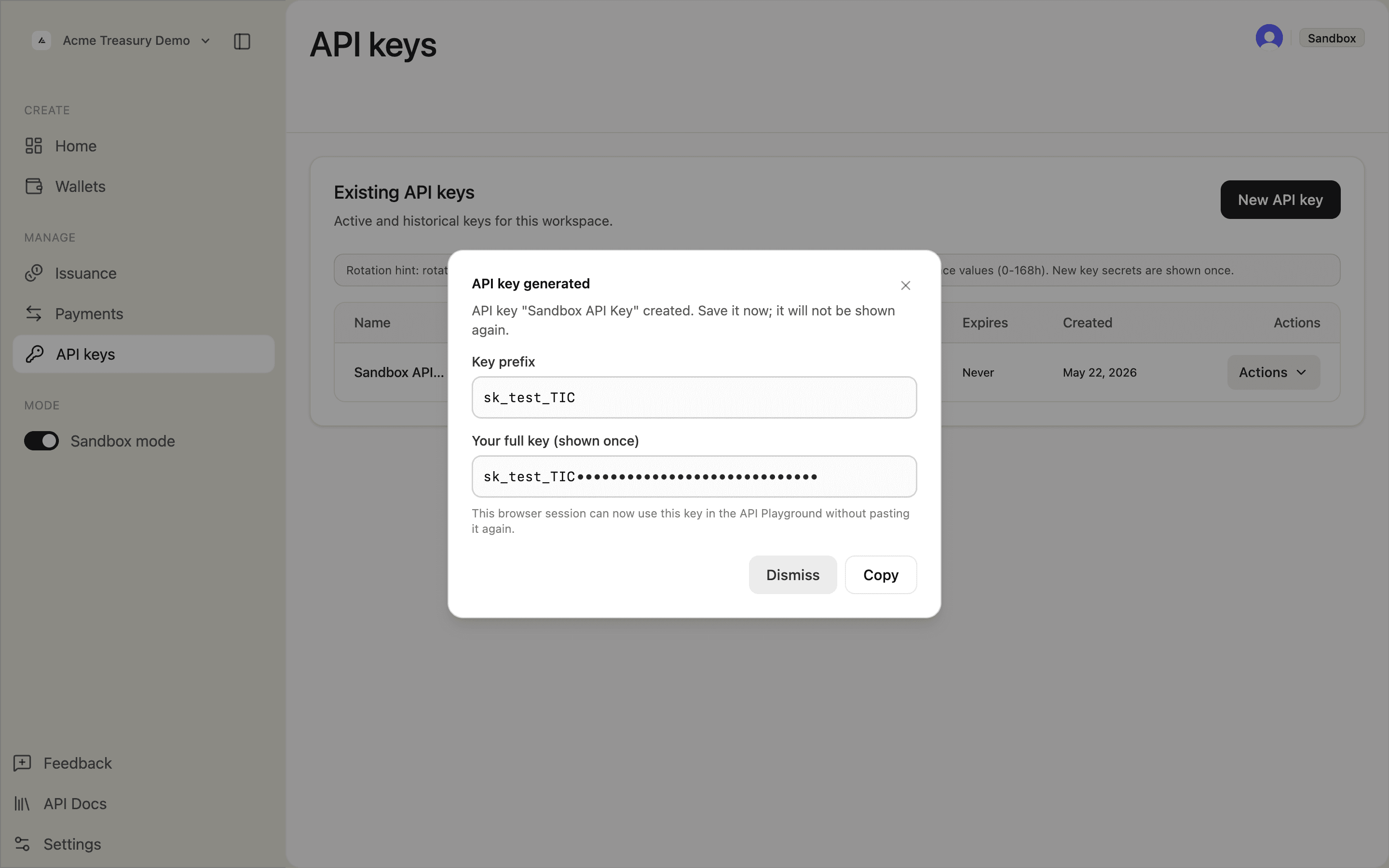
Click Copy on the API key generated modal and save the key — it will not be shown again.
-
Dismiss the modal. The key now appears in the table with its prefix, grants, environment, and status.
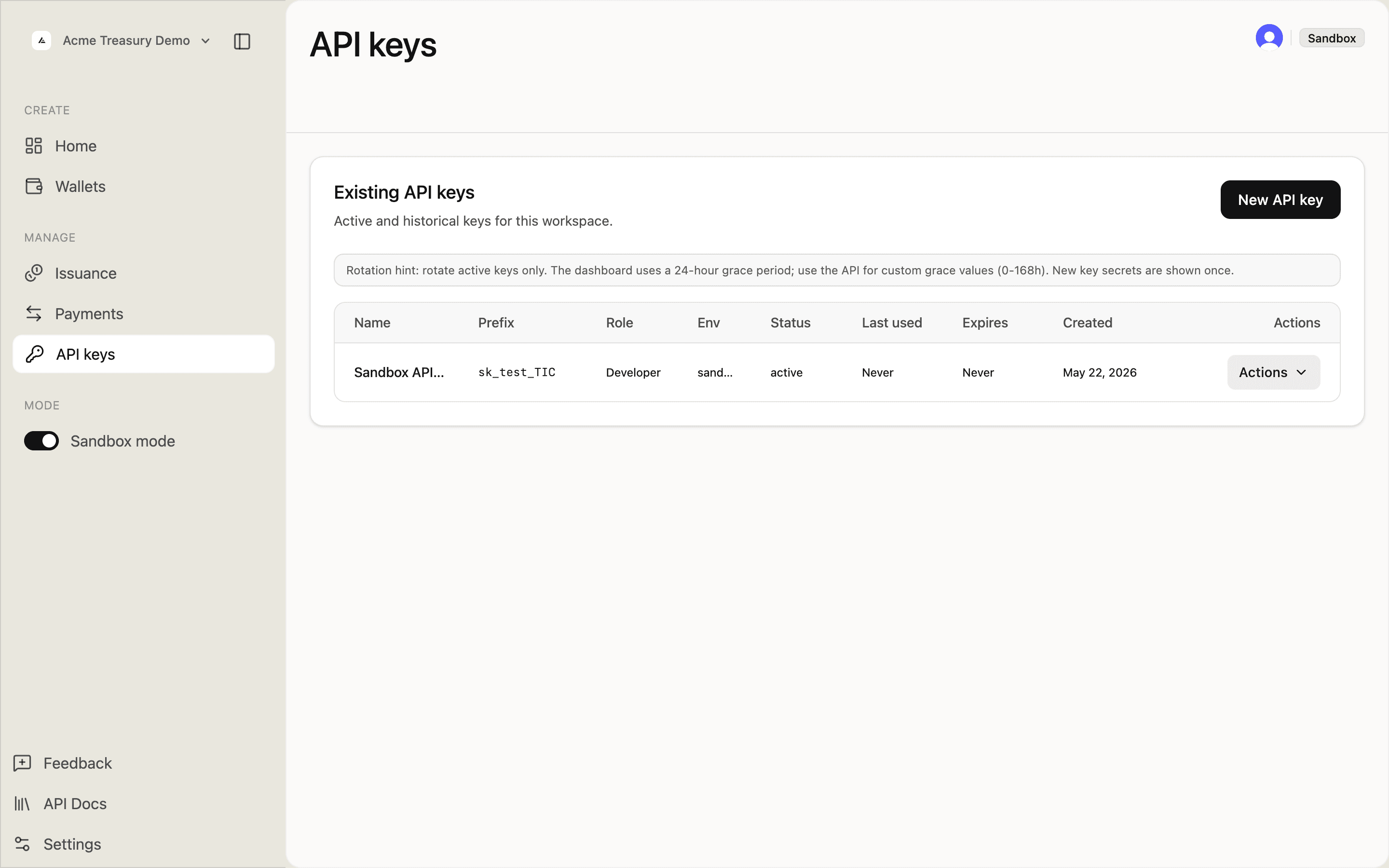
The key belongs to the project you create it in and inherits that project's environment.
Rotate a key
Rotation replaces the secret without an availability gap: the new key is a fresh record that clones the old key's grants, IP allowlist, and wallet scope, while the old key keeps working until its grace deadline. During the grace period both keys are valid; after it, the old key fails with EXPIRED_API_KEY.
-
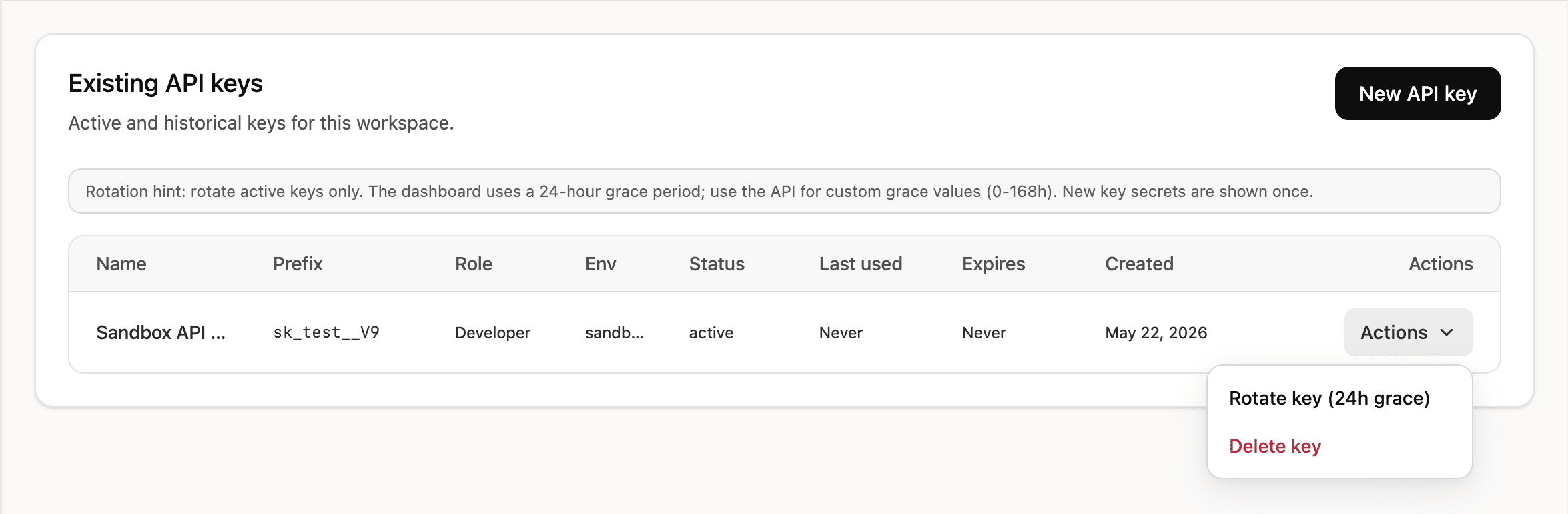
In the API keys table, open the Actions dropdown next to the key and click Rotate key (24h grace).
-
Copy the new key value from the generated key modal — it is shown once.
Revoke a key
Open the Actions dropdown next to the key and click Delete key. The key stops working on its next request and cannot be restored. Deleting a rotated key during its grace period ends the overlap early: the replacement keeps working.
If the key may be compromised, also cancel the recurring payments it activated: send "cancelRecurringPayments": true with the revocation. A recurring payment answers to the key that activated or last resumed it, or that last changed its source wallet, recipient, token, amount or period: that change re-authorizes where its money goes. Changing only its metadata or next collection date does not. The response lists the recurring payments it canceled and any it could not, which you can cancel one by one.